The public sign-up page shows your event title and the dates, times, location, and description you provided, followed by the available slots. A slot shows its time, who has already signed up (as first name and last initial, when names are public), and the open spots as dashed pills. An All / Open filter near the top narrows the list to slots with room. Multi-day sheets let volunteers browse slots by day. If details are missing, the page simply omits them rather than inventing event information.
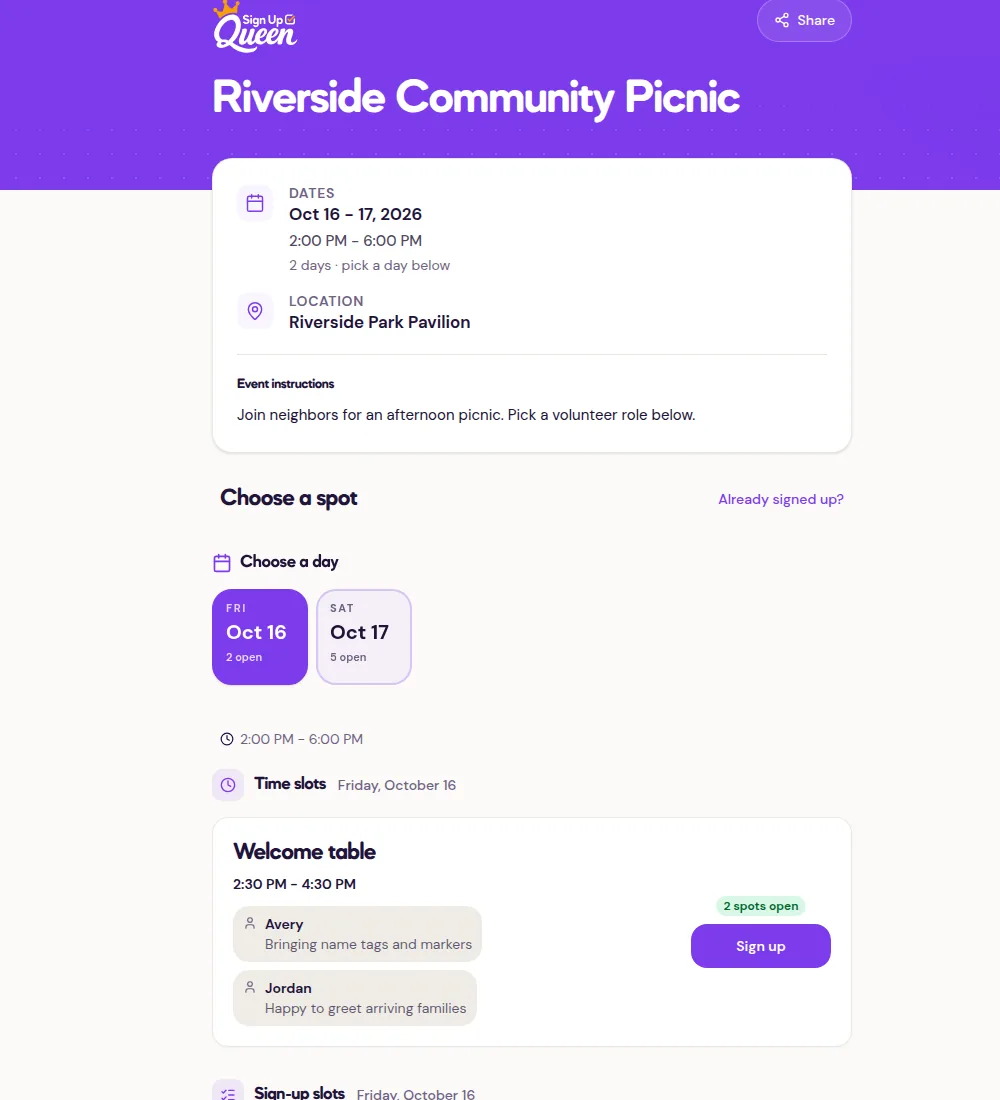
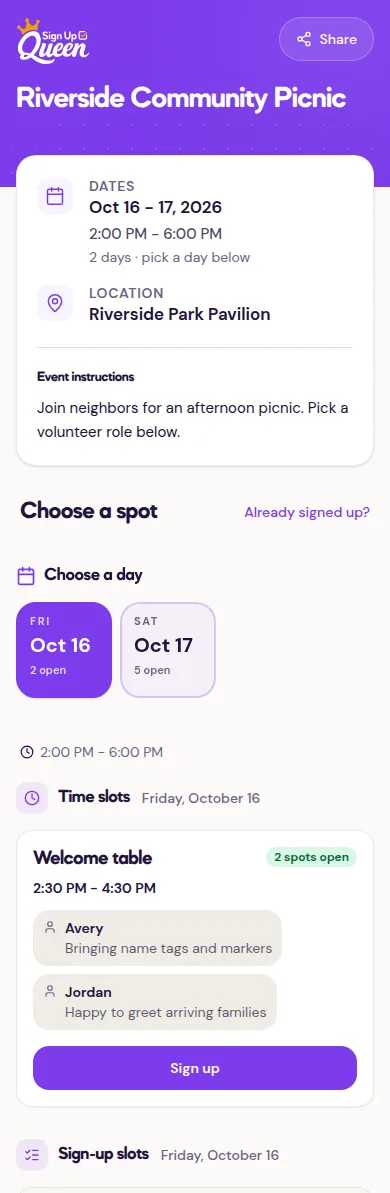
Claim a spot
- Choose an open slot and select Sign up.
- Enter your first name, last name, and email address. Phone is optional and is shown only to the host.
- Answer any sign-up questions and enter a comment if the slot requires one.
- If the slot allows multiple spots, choose how many you are claiming.
- Select Confirm my spot.
Volunteers do not need a Sign Up Queen account. After a successful sign-up, the page says You're in!, names the claimed slot, and reports that a confirmation was sent to the volunteer's address. The email contains a private link to change or cancel the sign-up. The page also shows the edit link under Your edit link with Open edit page and a copy option, and remembers the spot on that device. Done finishes; Choose another spot returns to the list for a second sign-up.
When an event date is available, the confirmation can also offer Google Calendar and Apple / Outlook (.ics) links.
Names and comments
The host controls name visibility under Sheet settings with Show volunteer names publicly. When it is off, the public response includes neither volunteer names nor public comments; the slot still shows its normal live status, such as spots open or Full. Volunteer email addresses are never shown in the public roster.
Comments are controlled separately for each slot:
- Comment prompt lets the host ask a specific question, such as "What dish are you bringing?" It replaces the generic comment label on the signup form and works with optional or required comments.
- Require a comment makes a nonblank comment mandatory for an ordinary public signup. It does not decide who can read the comment.
- Show comments publicly publishes nonblank comments for that slot next to the volunteer's first name. When it is off, the comment stays visible only to the organizer.
Without a custom prompt, the signup form labels the field Public comment when public comments are enabled, or Comment when they are private. With or without a prompt, the form explains who can see the answer. Public comments are trimmed and blank comments are not published. If names are hidden at the sheet level, comments are hidden too, even when the slot option is on. When names are visible, the public slot list shows public-comment cards and may show claimed first names; additional non-comment names are summarized as +N more.
Full slots can offer a waitlist only when the host has enabled it. Select Join waitlist, enter the same contact details, and the confirmation shows the position in line. If a spot opens, the first person in line gets it automatically and receives an email with a confirmation and edit link. A volunteer can select Leave the waitlist from that confirmation.
A volunteer may also see a closed sheet, but cannot claim a spot there. A past event shows its current state without accepting new signups.
To check your own page, open the sheet, select Share, then select Preview as a volunteer. A volunteer who already signed up can select Already signed up? on the public page to find their edit link. Before sending it out, read share a sign up sheet link or QR code.