Open the sheet from your dashboard, then select Share. One panel holds the public link, the QR code, a printable flyer, an embed option, and a volunteer preview. You can share the link anywhere volunteers already communicate: email, text, a group message, newsletter, or social post.
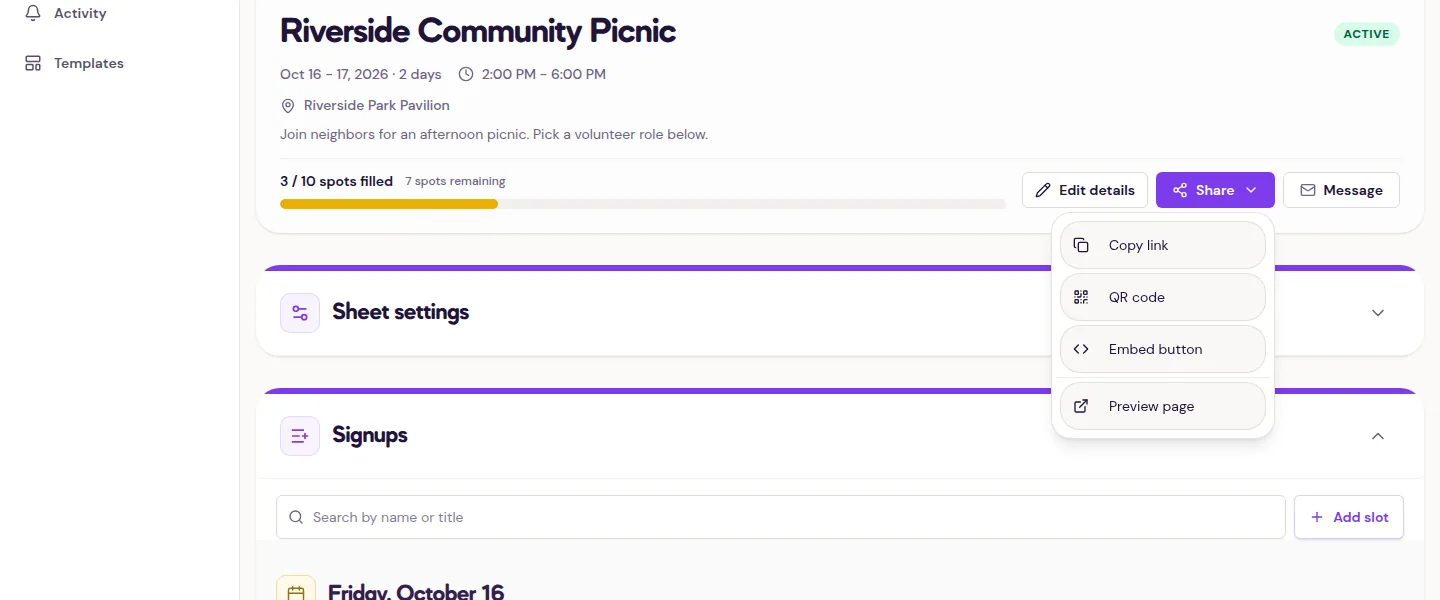
- Open the sheet from your dashboard.
- Select Share.
- Select Copy link, then paste the link into your email, text, newsletter, or post.
The same Share link is also offered on an empty roster: select Share your link in the "No sign-ups yet" note to open the panel.
QR code and flyer
For a sign or handout, use the QR code in the Share panel. Select Download to save the image, then place it on your own flyer or display it on a screen. Select Print flyer for a ready-made page with the event details and the code. Scanning the code opens the public sign-up page.
Embed and preview
Embed on your website gives you a small snippet that places a sign-up button on another page. Select Preview as a volunteer to open the public page in a new tab and check the details and open spots exactly as a volunteer sees them. The preview is useful after a last-minute slot or settings change.
What happens when someone clicks the link
Anyone with the link can view the sheet and claim an open spot. Volunteers do not need a Sign Up Queen account to sign up. A closed sheet is still viewable, but it does not accept new claims. The public link stays the same after you edit the sheet.
If you need to change the event before sending the link, see edit a published sheet. If the sheet is closed or offline, Copy link is unavailable; the public URL still shows the current sheet state. For the public-page flow in more detail, see what volunteers see.