Open the sheet from your dashboard and select Edit. The sheet editor opens with the event details and every slot in one form, with a live phone preview beside it on larger screens. You can change the title, organizer and contact details, description, dates, times, location, and slots after publishing. Saved changes appear on the public sign-up page right away.
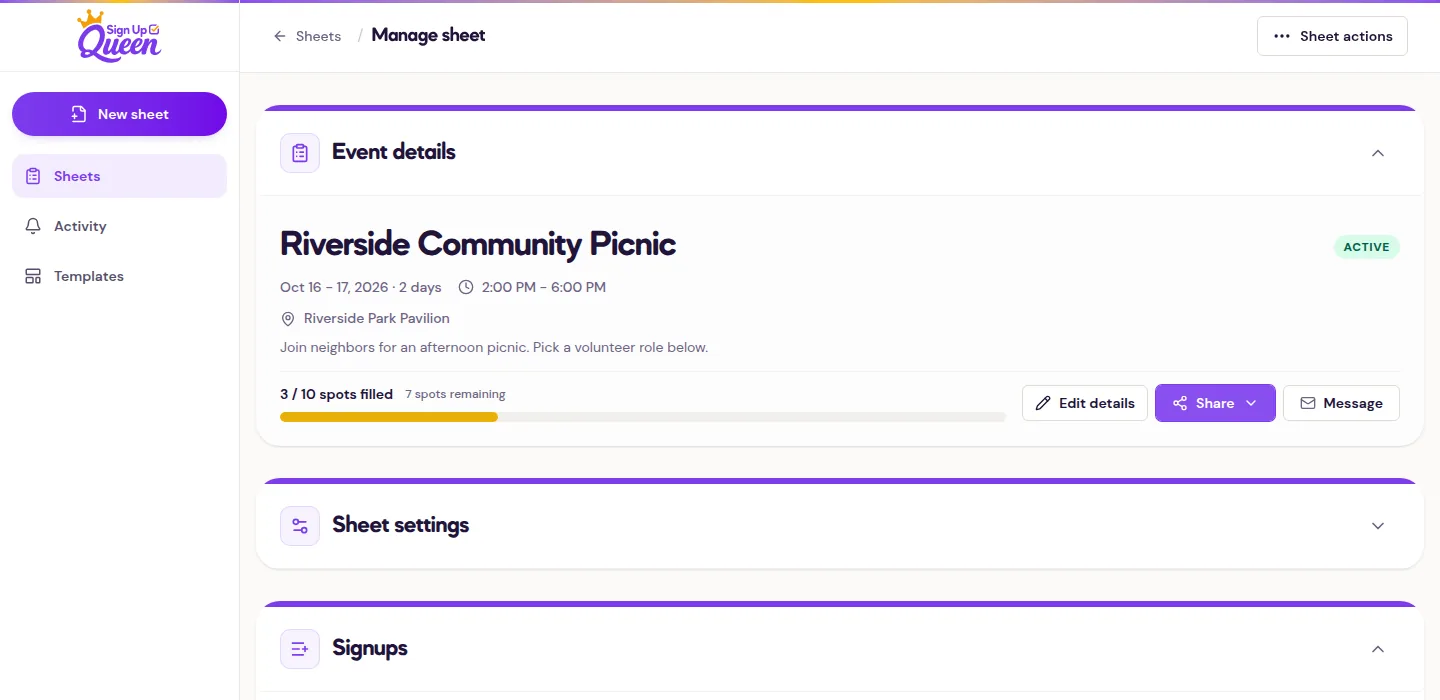
- Open the sheet from your dashboard.
- Select Edit.
- Make the changes you need. The header shows Unsaved changes until you save.
- Select Save changes. If saving would email anyone, or a change needs your decision first, the button reads Review and save and asks you to confirm before anything is saved.
The public link stays the same, and later visitors see the saved details. On a single-day sheet, edit the date, time, and location directly. On a multi-day sheet, each day keeps its own time and location, and each slot shows which day it belongs to.
Changing a date moves every slot on that day, and volunteer reminders follow the new date. If you are still setting up the dates, follow the multi-day sign up sheet instructions.
What happens to existing signups
Changing event details does not send an update to people who already signed up. Use Roster tools, then Message roster to tell volunteers about a change, or contact them another way. Calendar entries that volunteers have already added are not automatically updated. The private edit links volunteers already received continue to work.
Removing a slot that already has sign-ups is the exception: the editor asks you to confirm, and when you save, everyone in that slot is emailed that their spot was removed. The save button says so before you commit.
To change sheet options rather than event details, open Sheet settings further down the sheet page, or select More, then Sheet settings. That area includes volunteer-facing tools such as the waitlist, public names, sign-up questions, the sign-up schedule, and reminder emails. For a quick check of the public result, select Share, then Preview as a volunteer; see share a sign up sheet link or QR code.
You cannot save a slot's spots below the number already held. Remove enough sign-ups first, then lower the count. See set spot limits for the full capacity behavior.