Each slot has a capacity: the number of spots volunteers can claim. Set it when creating a slot, or change it later from the sheet: open the slot menu and select Edit slot, which opens the sheet editor with that slot expanded. A slot can hold one person or several people, depending on the number you enter.
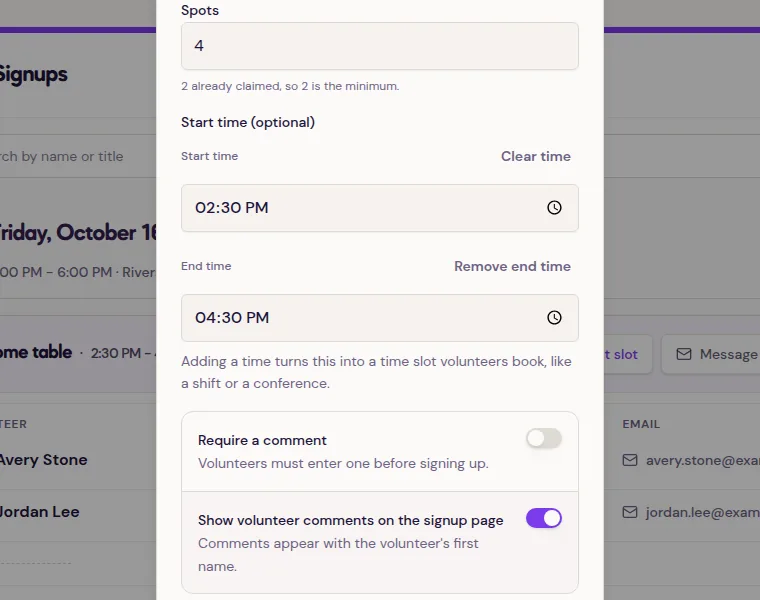
- Open the sheet from your dashboard.
- Find the slot you want to change and open its menu.
- Select Edit slot.
- Update Spots with the stepper or by typing a number.
- Select Save changes. If people on the waitlist would move into the new spots, the button reads Review and save and asks you to confirm before they are emailed.
When claims reach capacity, the slot is full on the public signup page. It does not accept another signup unless capacity increases, a claim is removed, or a waitlist is available. The slot and its existing signups stay in place when you edit the number.
Changing limits later
You can raise or lower the capacity at any time.
Raising capacity creates open spots on the public page right away. Lowering capacity never removes people who have already claimed the slot.
You cannot save a capacity below the current claim count. The editor shows the held count next to Spots and prevents a lower value. Remove enough sign-ups first, then edit the slot and save the lower capacity.
Capacity and multi-person signups
The capacity is the total number of spots in the slot. If a volunteer claims more than one spot, each claimed spot counts toward that total. The slot is full when the claimed count reaches the capacity.
Changing a slot's capacity does not move volunteers, change their email links, or change the slot's title or instructions. To remove a person, use add or remove a volunteer.
The Free plan allows unlimited sheets, with up to 40 slots on each sheet. A slot is an individual item or time slot, not each volunteer place inside it. Pro removes that per-sheet slot cap. Compare plans on the pricing page, or see manage Pro billing.