Use the roster on the sheet page when you need to record a sign-up yourself, update a volunteer's details, adjust capacity, or clear a volunteer who cannot attend. Each slot lists its volunteers with a Manage button and a remove control on every row, and an Add volunteer row at the bottom while spots remain.
Add a volunteer by hand
Use this when a volunteer gives you their details directly instead of claiming a spot on the public page.
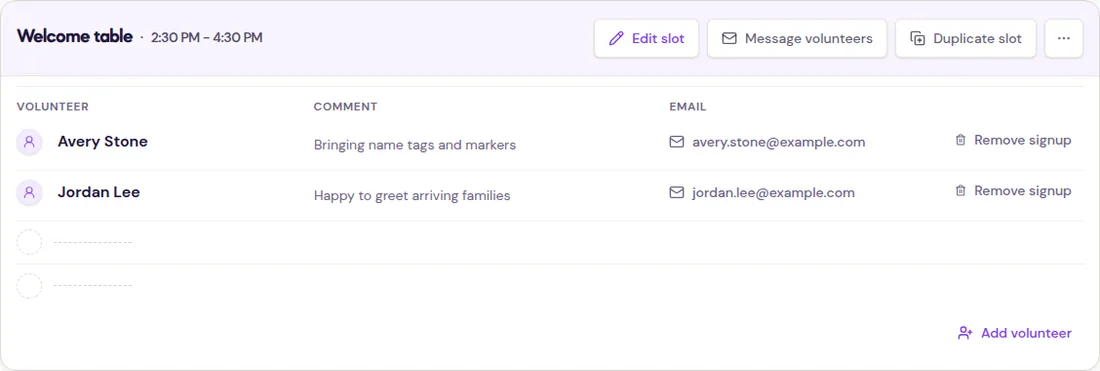
- Open your sheet from the dashboard.
- Find the slot you want to put them in.
- Select Add volunteer at the bottom of that slot. You can also select Roster tools, then Add participant, and pick the slot there.
- Enter the volunteer's first name, last name, and email address. Phone is optional.
- Answer any sign-up questions the sheet asks.
- Add an optional note, then select Add Volunteer.
The signup is added to the roster and the volunteer receives a confirmation email with a private change-or-cancel link. That link lets them manage their own spot later. If the slot is full, remove an existing signup first.
Update a volunteer's details
- Find the person's row in the slot.
- Select Manage.
- Change the name, email, phone, note, or question answers, then select Save changes.
The volunteer keeps the same private edit link. Changing the email address sends future reminders to the new address.
Edit a slot's capacity
- Open the slot menu and select Edit slot. The sheet editor opens with that slot expanded.
- Update Spots.
- Select Save changes. If people on the waitlist would move into the new spots, the button reads Review and save and asks you to confirm before they are emailed.
You can increase capacity at any time. You cannot lower capacity below the number of spots already held; the editor shows the held count next to Spots. Remove sign-ups first if you need to make a slot smaller. Capacity changes appear on the public sign-up page right away.
Remove a volunteer
Find the person under the slot where they are signed up.
- Open your sheet from the dashboard.
- Find the person's signup in the slot.
- Select the remove control (the trash icon) on that row.
- Confirm the removal.
Removing a confirmed signup reduces the claimed count and frees a spot. The volunteer receives a cancellation email. If waitlists are enabled, the next waiting person may be promoted automatically. See set spot limits if you are also adjusting capacity.
Put someone in a different slot
There is no direct move action. Add the volunteer to the destination slot, then remove the original sign-up. Check the destination capacity first so you do not overfill it. If the destination is full and you use waitlists, review use waitlists before changing the roster.
A few things to know
- Adding a signup by hand respects the slot's remaining capacity.
- A volunteer's email is required so they can receive their private link.
- A note is visible to you in the roster under Note. Question answers are saved with the sign-up when the sheet asks questions.
- Edit slot changes slot details; it does not remove the slot or its existing sign-ups. Removing a whole slot that has sign-ups emails everyone in it.